
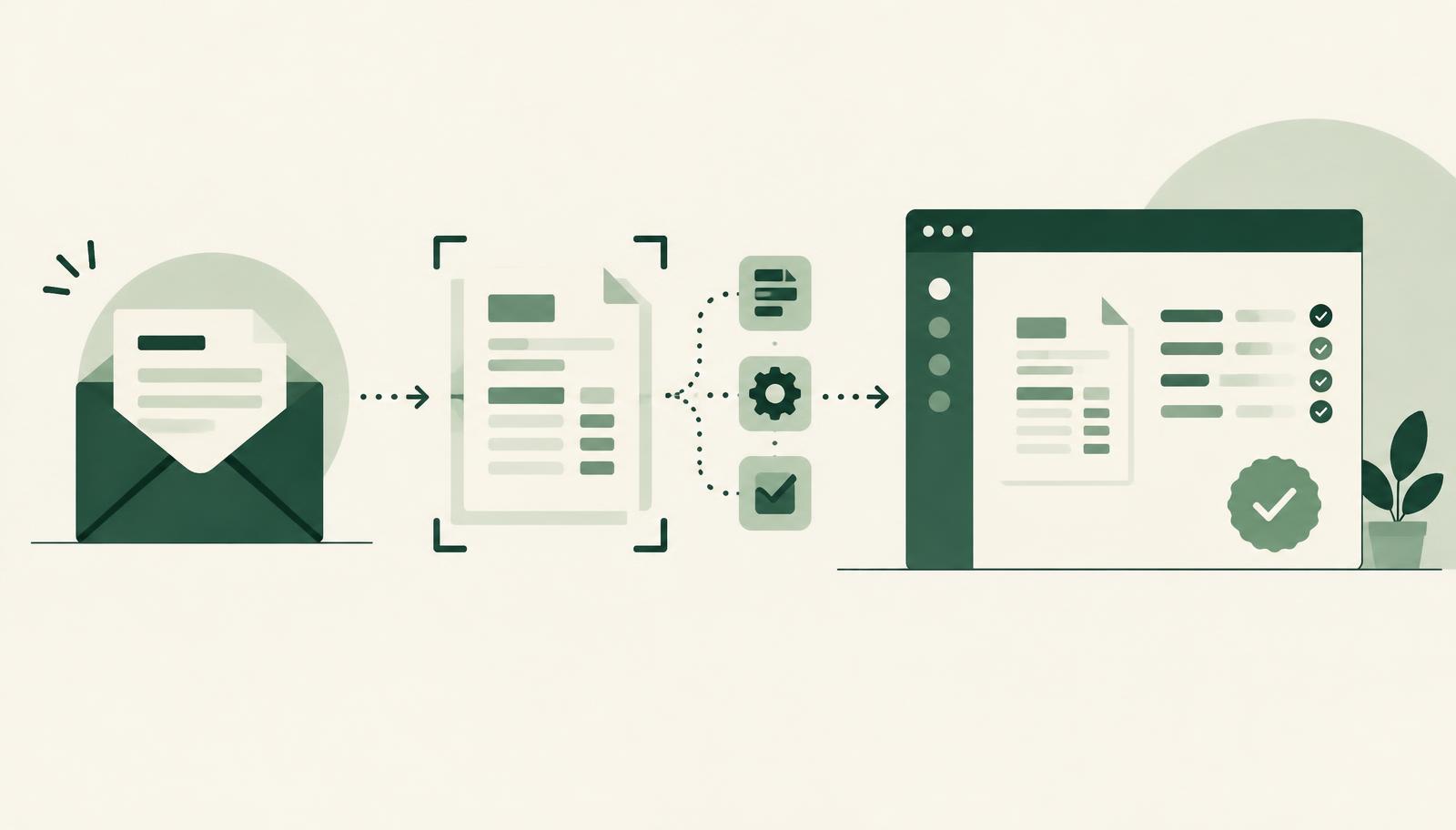
Business Central document capture turns supplier invoices that arrive as PDFs, scans or e-invoices into purchase documents in your ERP, without anyone retyping them. Instead of copying vendor names, amounts, VAT and due dates by hand, the system reads the document, recognises the supplier, proposes the lines and sends the draft to the right person for approval. Finance only checks exceptions.
If your accounts payable team still opens every email attachment, prints it, keys it in and files it in a folder, this article explains how document capture works in Microsoft Dynamics 365 Business Central, what to prepare before you switch it on, and how to measure whether it actually saves time.
What document capture means in Business Central
In everyday use, "document capture" covers the whole path of an incoming document, not only the scanning step:
- Receive – the invoice arrives by email, through an e-invoicing system or as a scanned paper document.
- Capture – the file is attached to Business Central as an incoming document, so nothing lives only in someone's inbox.
- Extract – header data (supplier, invoice number, dates, totals, VAT) and, where needed, line data are read from the document.
- Match – the supplier is matched to a vendor card, and the invoice is compared with the purchase order or receipt.
- Approve – the draft purchase invoice goes through an approval workflow.
- Post – after approval, the invoice is posted and the original file stays linked to the ledger entry.
Business Central has a standard Incoming Documents feature that stores the original file and connects it to the purchase document created from it. Microsoft documents the available options for reading data from PDFs and images in the Business Central documentation on Microsoft Learn. Most companies combine these standard building blocks with a localisation and an automated mailbox import so the process fits their market.
Why manual invoice entry costs more than it seems
Manual entry looks cheap because nobody books it as a separate cost. In practice it creates several hidden problems:
- Typing errors in amounts, VAT rates or bank details, which surface only during reconciliation.
- Late approvals, because the invoice waits in a personal inbox until someone remembers it.
- Missed deadlines for payment, early-payment discounts or tax reporting.
- No audit trail, when the original PDF is saved on a shared drive instead of next to the posted entry.
- Parallel records, such as an Excel list of "invoices received but not yet entered".
Document capture does not remove the accountant from the process. It moves their time from typing to checking, which is where their knowledge actually matters.
Manual entry vs. document capture
| Step | Manual process | With document capture |
|---|---|---|
| Receiving | Attachments sit in personal inboxes | A shared mailbox is imported into Business Central automatically |
| Data entry | Every field is typed by hand | Header data is extracted and proposed |
| Vendor check | Searched manually | Matched to the vendor card |
| PO comparison | Printed and compared on paper | Compared with the order and receipt in the system |
| Approval | Email or signature on paper | Approval workflow with a clear history |
| Archive | Separate folders or drives | Original file linked to the posted entry |
How the process looks with HOLYERP
HOLYERP delivers Business Central in the cloud with a localisation for the Serbian market and support for companies operating in Germany and Switzerland. For incoming invoices, the relevant pieces are:
- Automatic import of invoices from email. Suppliers keep sending invoices to one address; Business Central picks them up and creates incoming documents without anyone forwarding files.
- Direct SEF integration for Serbian companies. Incoming e-invoices from the Serbian e-invoicing system (SEF) arrive in Business Central as structured data, so there is nothing to extract or retype, and acceptance or rejection is handled from the ERP.
- Localisation that understands the result. Captured invoices flow into VAT records and POPDV preparation, so tax reporting is based on the same data that was approved.
We describe the incoming invoice flow in more detail in our article on automatic incoming invoice processing.
Structured e-invoices vs. PDF documents
Not every incoming document needs the same treatment, and a good setup separates them early.
Structured e-invoices already contain machine-readable data. In Serbia, B2B invoices are exchanged through SEF. In Germany, businesses have had to be able to receive structured electronic invoices in domestic B2B trade since 1 January 2025. For these documents, capture means importing the data correctly and keeping the original, not reading text from an image.
PDF and scanned invoices still arrive from foreign suppliers, small vendors and service providers. These are where extraction and matching save the most time, and where clear rules for checking the result matter most.
A practical rule: aim for as many structured invoices as possible, and use capture with extraction for the rest.
What to prepare before you switch it on
Document capture is only as good as the master data behind it. Before go-live, check:
Clean vendor master data
Duplicate vendors, missing VAT numbers or outdated bank accounts cause wrong matches. Merge duplicates and complete the key fields first.
One entry point for invoices
Agree on one invoice address per company and tell suppliers. Capture works best when invoices stop arriving in ten personal inboxes.
Purchase order discipline
Matching with orders and receipts only helps if orders exist and receipts are posted on time. Decide which spend categories require an order.
Approval rules
Define who approves what, by amount, cost centre or project. If you already track costs with dimensions, the captured invoice can carry them into the ledger; see our guide to Business Central dimensions.
Exception handling
Decide what happens when a supplier is unknown, totals do not match or the order is missing. A clear owner for exceptions keeps the queue from growing.
How to measure the result
Set a baseline before go-live and compare after two or three months:
- average time from receipt of an invoice to posting,
- share of invoices posted without manual correction,
- number of invoices waiting for approval longer than a week,
- number of payment reminders received from suppliers,
- time spent on month-end accruals for "received but not posted" invoices.
These figures show whether the process works, and they also show where to improve next, for example suppliers who should move to e-invoices.
Common mistakes to avoid
- Switching on capture before cleaning master data. Bad data leads to wrong matches and quickly destroys trust in the system.
- Automating posting without approval. Capture should create drafts; a person still approves them.
- Keeping the old Excel list "just in case". Parallel records mean nobody knows which list is correct.
- Treating it as an IT project only. Accounts payable, purchasing and approvers all need to agree on the new flow.
When the system itself needs adjusting, for example a new field or a different matching rule, HOLY BC Agent, the Holy AI assistant integrated in HOLYERP, helps with quick diagnosis and planning of changes, so a stuck invoice flow does not wait weeks for a developer.
Want to see how document capture would work with your invoices?