
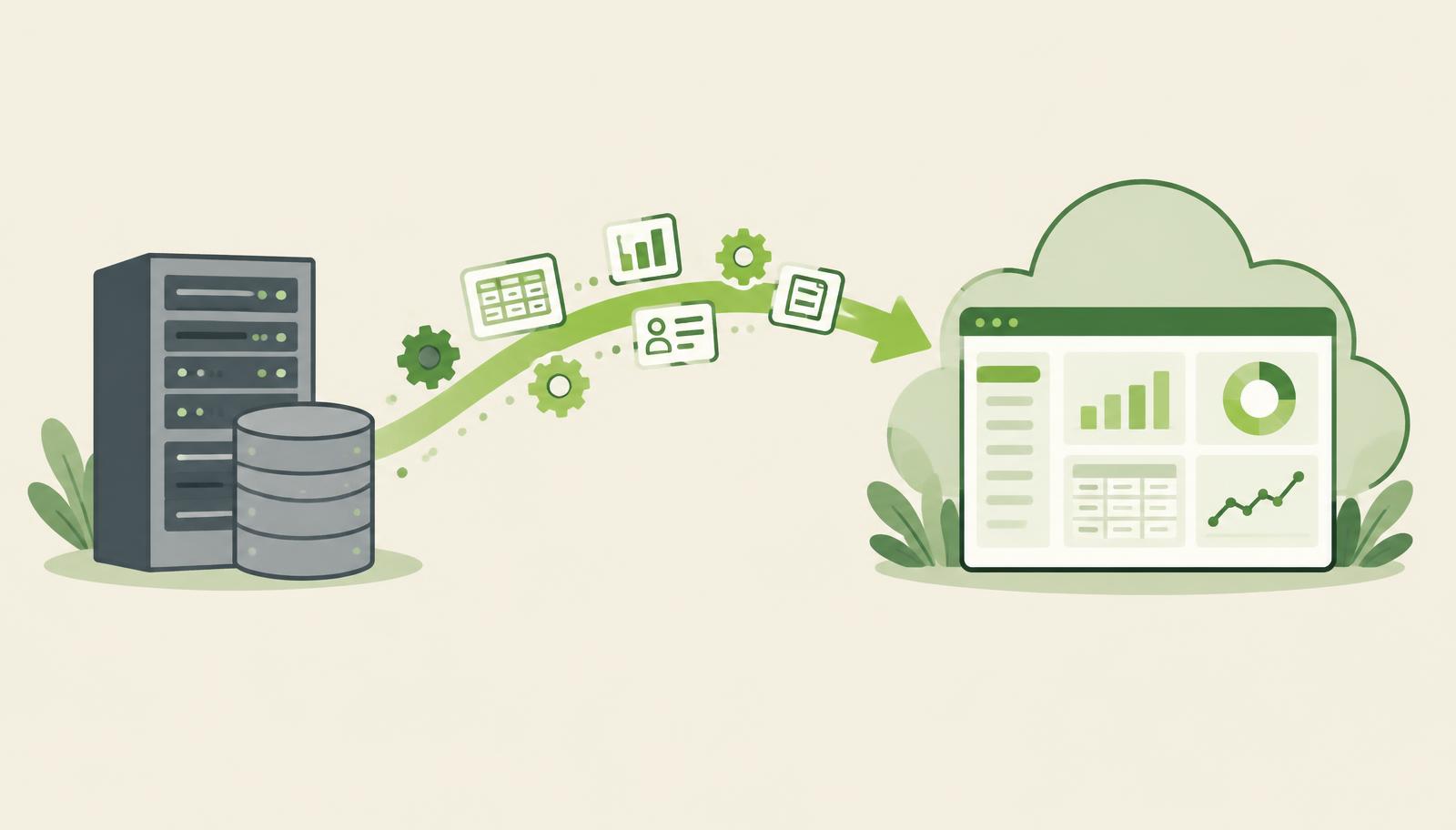
To migrate Dynamics NAV to Business Central, you move your data, processes and custom code from an on-premise Navision system to Microsoft Dynamics 365 Business Central, ideally in the cloud. The data is usually the easy part. The real work lies in deciding which old customisations to keep, rebuilding the ones you need as extensions and preparing your team for new ways of working. This guide explains the typical migration path, the decisions you need to make and how to avoid the most common mistakes.
Why companies are leaving Dynamics NAV
Dynamics NAV served many companies well for years, but most installations share the same problems today:
- Ageing versions. Many companies run NAV versions that Microsoft no longer supports with updates, which creates security and compliance risks.
- Heavy customisation. Years of changes to the base code make every upgrade expensive and slow.
- On-premise infrastructure. Servers, backups and SQL maintenance cost money and depend on a few people who know the system.
- Legal changes. E-invoicing, VAT reporting and other regulatory requirements keep changing, and adapting an old, heavily modified system takes time.
Business Central is the direct successor of NAV. It keeps the familiar logic of finance, purchasing, sales, inventory and projects, but runs as a cloud service with regular updates from Microsoft.
What actually changes when you move to Business Central
| Area | Dynamics NAV | Business Central online |
|---|---|---|
| Hosting | Your own servers or a hosting partner | Microsoft cloud |
| Updates | Manual upgrade projects | Regular updates from Microsoft |
| Customisation | Changes directly in the base code (C/AL) | Extensions in AL, base code stays untouched |
| Access | Mostly Windows client | Browser, tablet and phone |
| Integrations | Custom interfaces | APIs and connectors |
The most important difference is customisation. In Business Central online you cannot change Microsoft's base code. Everything you need on top of the standard must be built as an extension in the AL language. This is what keeps future updates painless, but it also means your old C/AL changes cannot simply be copied over.
The typical migration path, step by step
1. Analyse your current NAV system
Start with an inventory: which NAV version you run, how many companies and users you have, how much historical data exists and, above all, which customisations are actually used. In many systems a significant share of old changes is no longer needed, because the processes have changed or the standard Business Central now covers them.
2. Decide what to keep, replace or drop
For each customisation, ask three questions: does standard Business Central already cover it, is there a ready-made extension for it, or does it really need to be rebuilt in AL? This decision has the biggest impact on cost and duration.
3. Plan the data migration
Decide how much history you need in the new system. Common approaches are migrating open items and balances only, migrating several years of detailed history, or keeping the old NAV database available read-only for reference. Older NAV versions often need to be upgraded in steps before data can be moved to the cloud, so plan this technical path early with your partner. Microsoft documents the available tools and paths in the official Business Central documentation.
4. Rebuild the necessary customisations as AL extensions
This is where the project can speed up considerably. AI-assisted development can turn a plain-language requirement into a proposed AL extension, which an experienced consultant then reviews and tests. We describe this approach in detail in our article on AI development of AL extensions for Business Central.
5. Set up local compliance
If your company operates in a country with specific requirements, such as Serbia's SEF e-invoicing, POPDV reporting and NBS exchange rates, the localisation must be part of the plan from day one, not an add-on at the end.
6. Test with real scenarios
Run test migrations, close a trial month and compare the results with NAV. Test with real customers, suppliers, currencies and exceptions, not only with ideal examples.
7. Train users and go live
Users who know NAV will recognise much of the logic, but the interface and some processes are new. Short, role-based training sessions work better than one long general course.
How long does a migration take?
Duration depends on the number of companies, the amount of customisation and data, and how quickly decisions are made on the client's side. A migration from Dynamics NAV usually takes from 2 to 8 months, depending on the number of companies, the amount of customisation and how much history you migrate. A system with many old customisations may take longer if a large part of them really has to be rebuilt.
Common mistakes to avoid
- Copying everything 1:1. Rebuilding every old customisation turns a modernisation project into an expensive copy of the past.
- Underestimating data cleanup. Duplicate customers, inactive items and outdated accounts should be cleaned before migration, not after.
- Leaving compliance for the end. E-invoicing and VAT reporting affect master data, posting and approvals.
- No owner on the business side. Every migration needs a person who can make process decisions quickly.
- Skipping the test month. A trial month-end close is the best way to find problems before go-live.
How HOLYERP supports NAV migrations
HOLYERP delivers Microsoft Dynamics 365 Business Central in the cloud as a Microsoft partner and part of the Holycode group, with everything in one place: licences, implementation, user training and ongoing maintenance aligned with legal changes. For companies in Serbia, this includes full Serbian localisation with direct SEF integration, POPDV preparation and NBS exchange rates.
After go-live, HOLY BC Agent, the integrated AI assistant, helps with fast diagnostics, planning changes and resolving issues without long waits for developers, while the HOLY team reviews and signs off every change.
Questions to ask your migration partner
Before you sign, ask these questions to see whether the partner has a realistic plan:
- Which of our current customisations do you expect to replace with standard functionality?
- What is the technical path for our NAV version, and how many test migrations are planned?
- How much historical data will be migrated, and how will we access the rest?
- Who maintains local compliance features when regulations change?
- How is support organised after go-live, and how fast are issues resolved?
Clear answers to these questions are a good sign that the project will stay on schedule.
Conclusion
A NAV to Business Central migration is the right moment to clean up data, drop customisations you no longer need and move to a system that stays current with every update. Start with an honest analysis of your current system, plan compliance from day one and test with real data.
If you want to see what your migration path could look like, book a free demo with HOLYERP and bring your current NAV setup to the conversation.
Want to see what your NAV migration path could look like?